
Skip to content
Skip to content
Menu
Alchemex
  • Products
    • Sage Intelligence Reporting
      • Enrolment
    • Velixo
      • Enrolment
        • Velixo for Acumatica
        • Velixo for Sage Intacct
  • Services
    • Consulting
    • Training
    • Development
  • Support
    • Support Overview
    • Create Support Ticket
    • Book A Session
    • Knowledgebase
  • About
    • About Us
  • Contact
Alchemex

How to determine whether you are over or under budget using custom formats

By admin on January 25, 2018April 19, 2019

Monitoring budgets can be quite stressful and may often involve the use of formulas. Instead of complicated formulas, you can use custom formats within Microsoft Excel to easily determine if you are over or under budget.

All it takes are a few steps, which we explain below, and you can easily monitor your budget.

You’re welcome to download the workbook to practice.

Applies to: Microsoft Excel  2010 and 2013

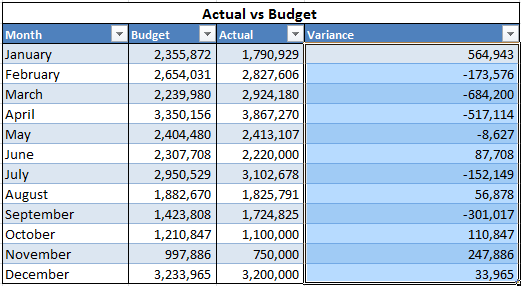
1. Select the data range E4:E15 and right click on the selected range.
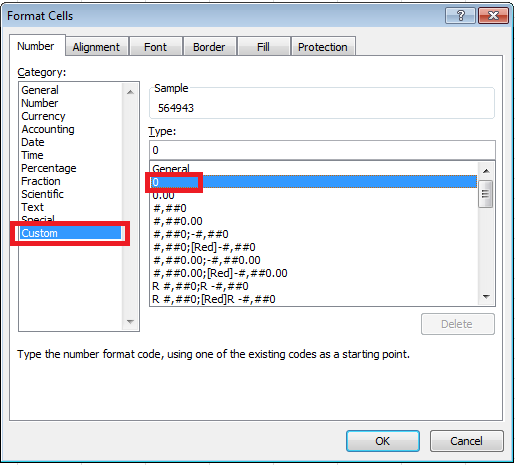
2. Select Format Cells, then select Custom from the Category menu.

3. In the Type field select 0.
ExcelCustomFormatsBudget2

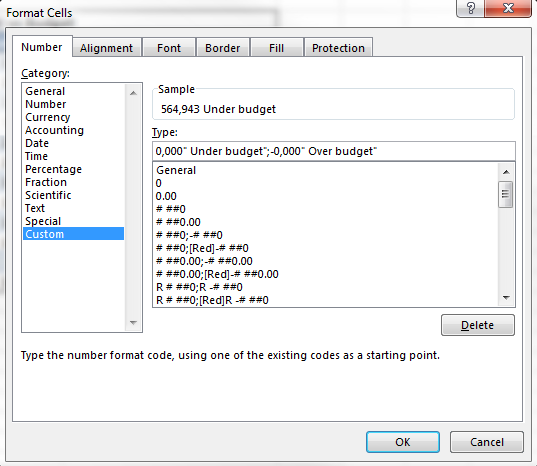
4. Type in the following: 0,000 “Under budget”;-0,000      “Over budget”

Then select OK

NB: If the formula populates an error, use the following instead:

0,000 “Under budget”;-0,000 “Over budget”
ExcelCustomFormatsBudget5

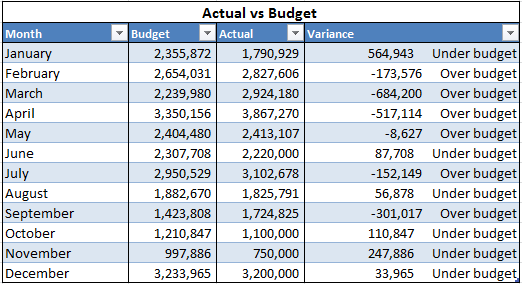
The values where the variance is positive have the words “Under budget” next to them. Where the variance is negative, “Over budget” is displayed. In that way, it is easy to determine whether a value is over or under budget.
ExcelCustomFormatsBudget4

The post How to determine whether you are over or under budget using custom formats appeared first on Sage Intelligence.

Source: Excel on Steroids

Post navigation

Learn how to share your report between different users and companies
How to calculate Sales Tax/ VAT using PowerPivot Measures in Excel

Leave a Reply Cancel reply

Your email address will not be published. Required fields are marked *

Recent Posts

  • Why Working In Excel Works
  • Alchemex Welcomes Velixo 6 For MYOB Advanced
  • Welcome to Velixo Reports Version 4.2
  • Part 3 of 3: Learn how to create a Management Pack in Sage 50cloud Intelligence
  • Part 3 of 3: Create and customize reports easily with the Financial Report Designer

Search

Contact Us

Phone: +61 2 9890 2339
Email: sales@alchemex.com.au
Address: PO Box 212, Deaken West, Canberra, Australia, 2600
©2025 Alchemex | WordPress Theme by SuperbThemes.com